Are you running a live sports broadcast on PRISM Live Studio and want a professional scoreboard on screen? With CloudMonet's ready-made templates, you can set this up in under 5 minutes. Just add a link to PRISM Live Studio as a source. Here is the full process.
How does it work?
Here are the steps:
- Choose a template, or build your own scoreboard
- Open the Control Panel for that template
- Customize it — team names, colors, logos, clock
- Copy the links you need for PRISM Live Studio
- Add the output link as a Browser source
- Run your show
Choose a template, or build your own scoreboard
Note: If none of the templates match your sport, you can start from a blank canvas and build your own.
Select a template, and go to its control panel.
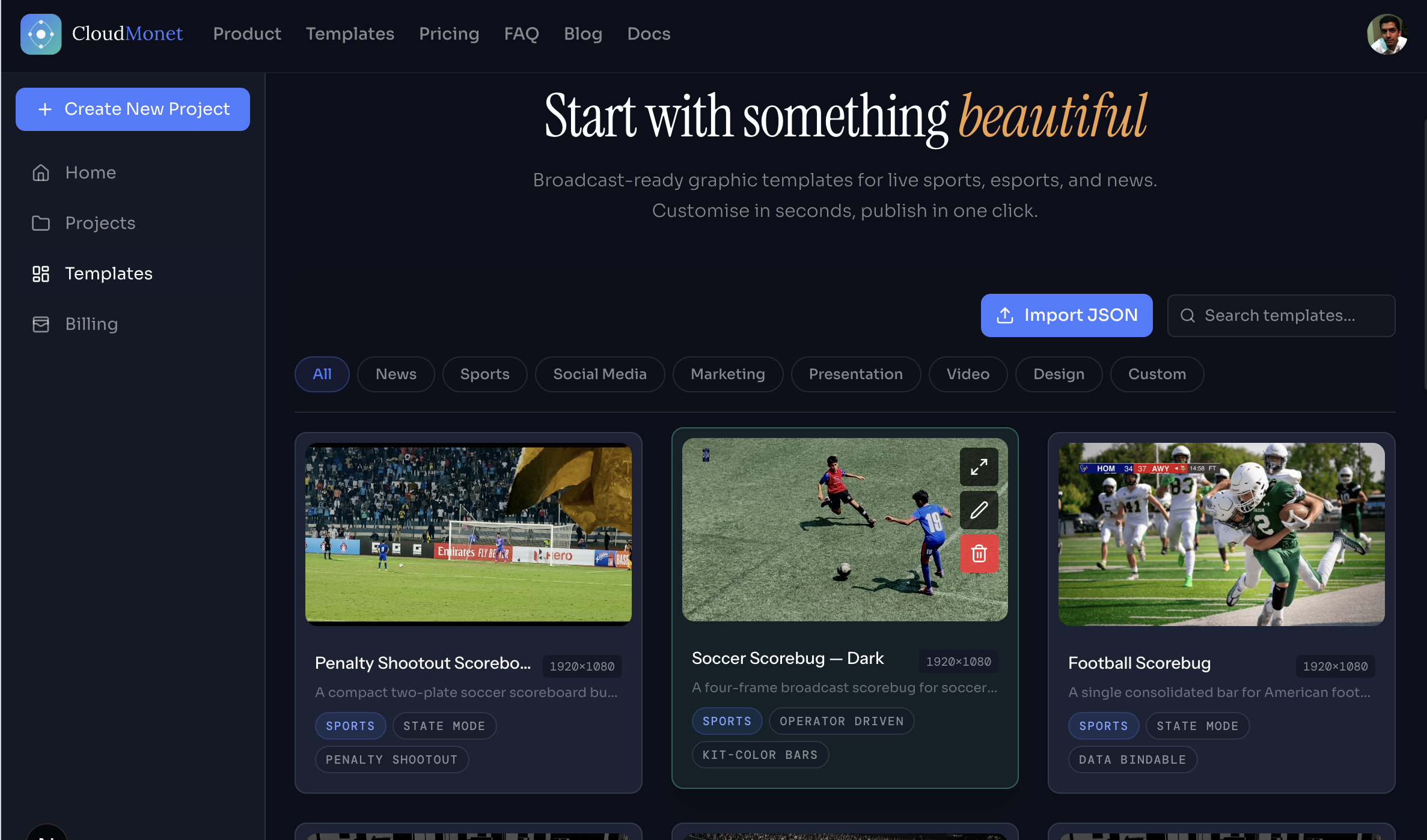
Open the Control Panel
The Control Panel shows a live preview of the graphic next to its controls.
Spend a few minutes in the control app before your broadcast. Try adding a point to the score, running the clock, switching possession, and showing the alert banner. This helps you get comfortable with the controls before the game starts.
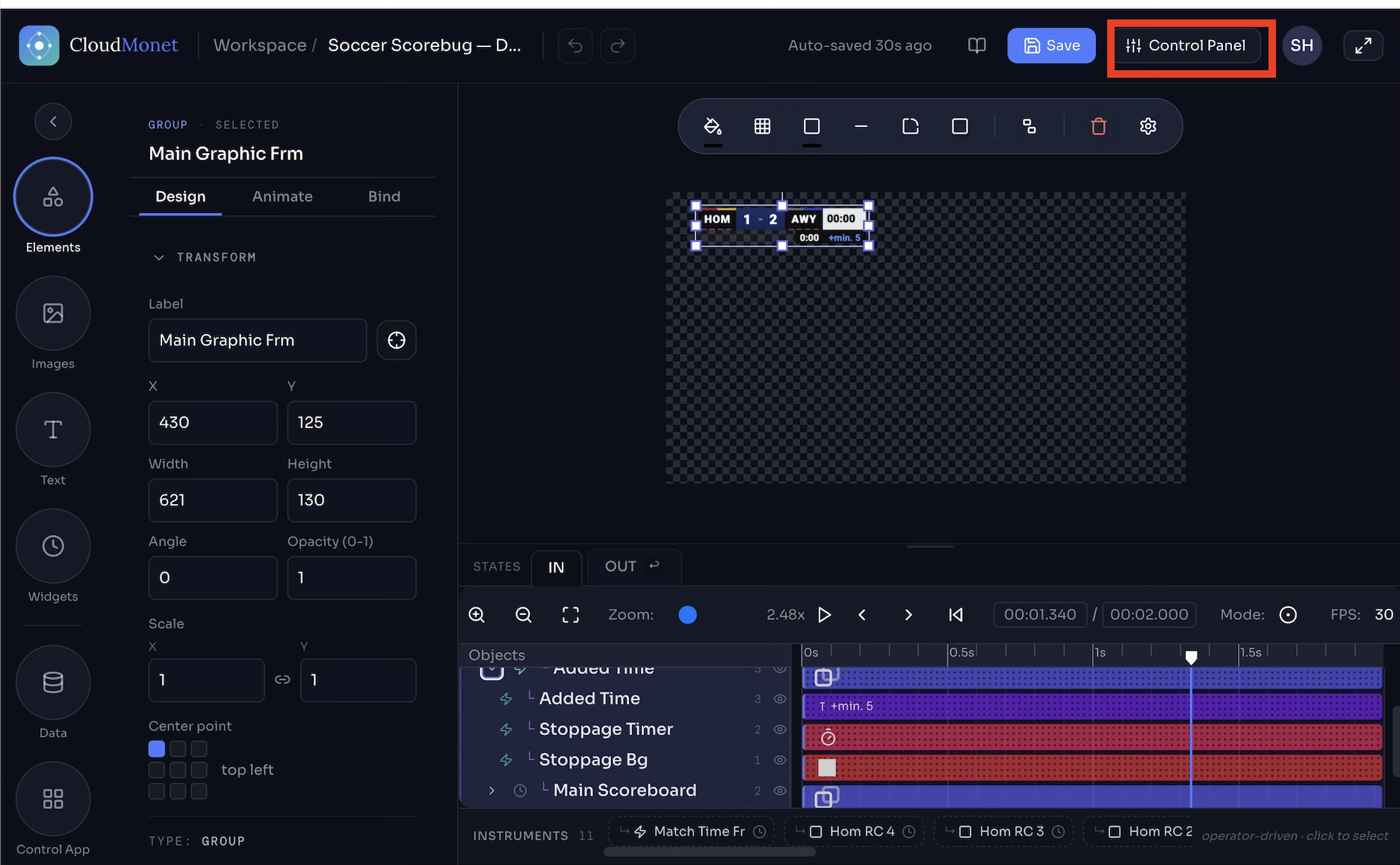
Customize the template (Optionally)
- Team names or abbreviations, and logos
- Team colors (these are usually also used as the background color on the graphic)
- Starting clock time and number of periods
The specific fields to configure depends on the graphic.
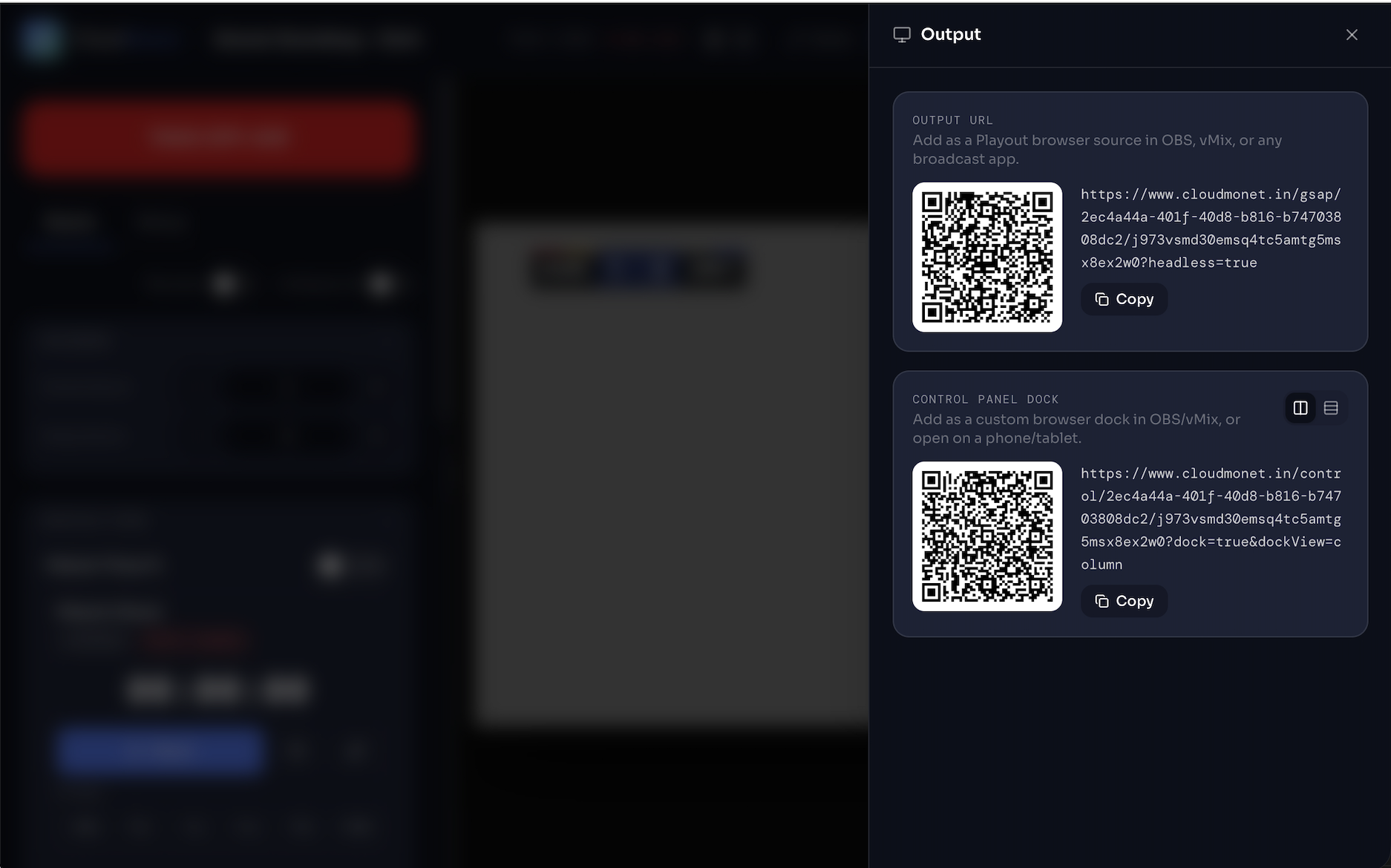
Copy the Output links into PRISM Live Studio
- Output URL — this is the graphic itself, shown on a page with a transparent background. This is the link you add to PRISM Live Studio as a Browser source.
- Control Panel Dock URL — this is only the controls from the Control Panel, without the graphic preview. Keep this link open on your own laptop, or dock this page inside PRISM itself (see Step 5). Your viewers should never see this page.
Add the output link(s) to PRISM Live Studio
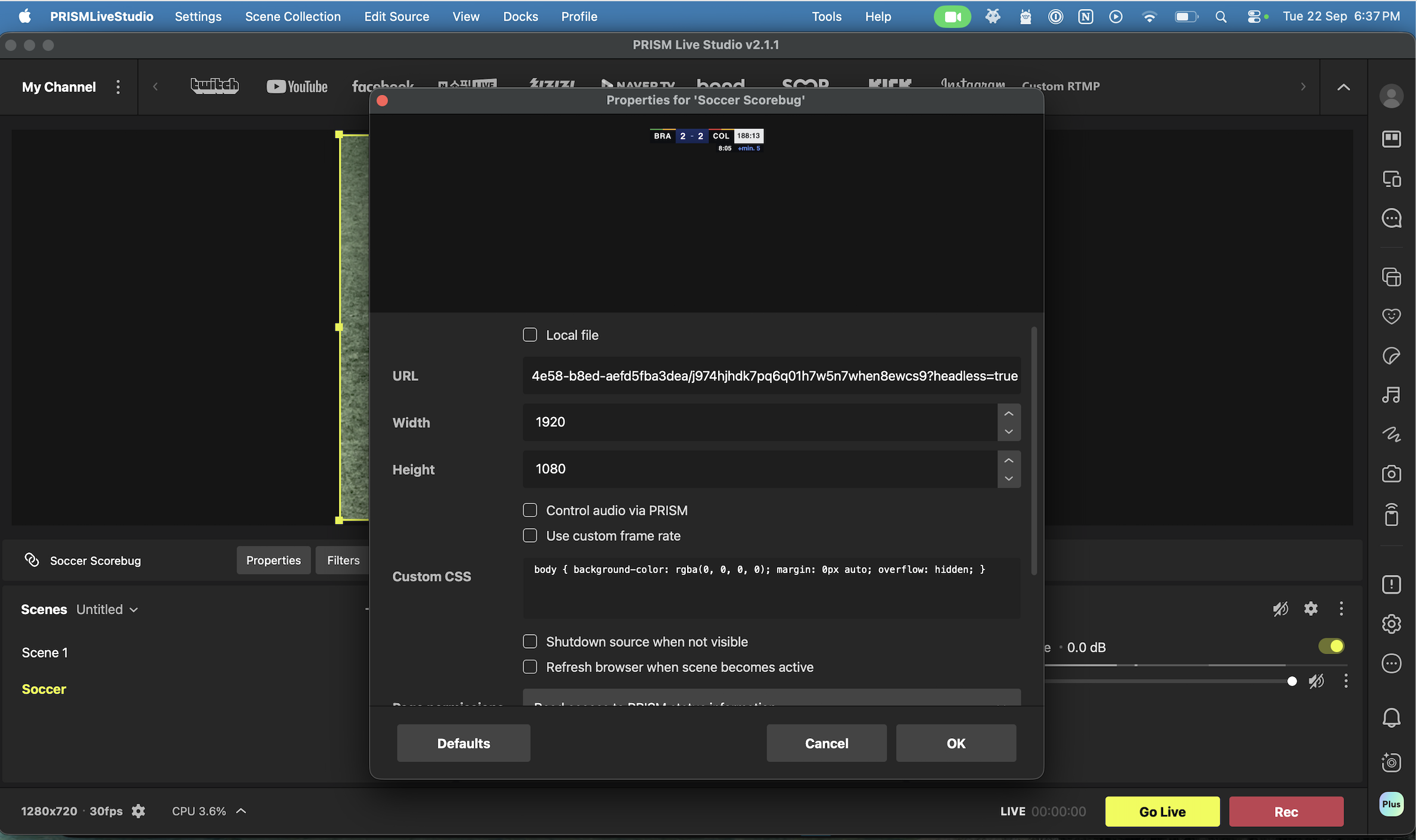
- In your scene, click Add Source and choose Browser from the list, and on the next screen give your source a name such as “soccer scorebug”
- Paste the Output URL into the URL field, and set the size to match the template's canvas (usually 1920×1080)
- Click OK — the graphic appears in your scene with a transparent background already, layered above your camera or other sources. PRISM's Browser source keeps the background transparent by default, so there's no extra setting to turn on
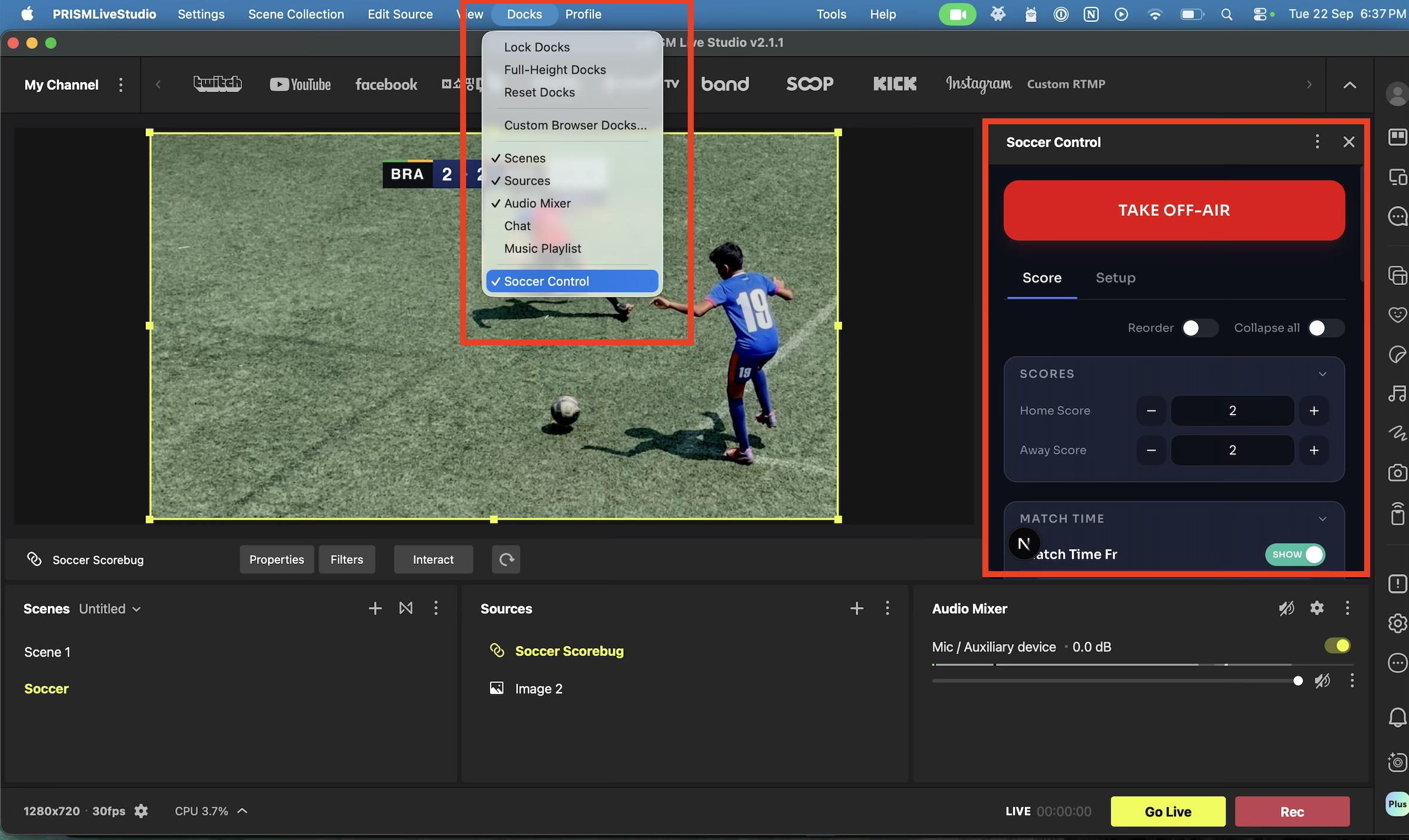
If you would like to control the graphic from within PRISM Live Studio, then open the app menu in the top-left corner and go to Docks → Custom Browser Docks. Give the dock a name, paste in the Control Panel Dock URL, and click Apply. The controls open as a floating panel — drag it into the PRISM window to attach it, so it becomes a permanent part of your layout, right next to your preview.
Run your show
- If the graphic doesn't appear, or looks stuck, remove the source and add it again with the same URL
- Check that the source's size matches your output resolution, so the scoreboard text doesn't look blurry
The Output URL does not change when you edit the design later. So once it's set up, you won't need to find a new link for future games — just make sure the source is switched on before you go live.
Why use CloudMonet for this
- · Easy to set up. Templates already have animation and logic built in. You only need to fill in fields, not build layouts from scratch.
- · Full editor when you need it. If you want to go beyond the basic controls, you can open the full design editor and change anything in your project.
- · No software to install. All you need is a device with internet access and a browser. You can control the graphic from anywhere, on a different device than the one running PRISM Live Studio.
- · Always up to date. New features and templates are added regularly, at no extra cost. See what's new.
Once your first scoreboard is on air, the same steps — template, control app, output link, PRISM Live Studio source — work for every other graphic in CloudMonet's template gallery, including lower thirds, tickers, and lineup reveals.
Frequently Asked Questions
Do I need to install anything to use CloudMonet?
No. CloudMonet works fully in your browser, so there's nothing to install. You only need PRISM Live Studio (or your broadcast software of choice) to display the output.
Does this work with software other than PRISM Live Studio?
Yes. The output link is a normal web page. It works as a Browser source in PRISM Live Studio, a Browser Source in OBS or Streamlabs, a Web Browser input in vMix, or in any other tool that supports browser-based sources.
Why is my scoreboard showing a white background instead of being transparent?
This is uncommon with PRISM's Browser source, since it keeps backgrounds transparent by default. If it happens, try removing the source and adding it again with the same Output URL.
Can I use CloudMonet for free?
Yes. CloudMonet has a free plan with no credit card required, so you can try the full scoreboard setup before upgrading.
Can more than one person control the scoreboard?
Yes. CloudMonet works in the cloud and supports multiple users, so a second person can open the control app on their own device, separate from the device running PRISM Live Studio.
What happens if I change the design after publishing?
Nothing changes on your end. The Output URL stays the same. Any changes you make to the design update automatically, without needing to add the source again.