Are you streaming a live sports event on OBS and want a professional scoreboard on screen? With CloudMonet's pre-built templates you can be up and running in under 5 minutes — just point it at a URL, and drop that URL into OBS as a Browser Source. Here's the full workflow.
How does it work?
Here are the steps, and the good news — none of them require designing anything from scratch:
- Select a template (or build your own custom scoreboard)
- Open the control app for that template
- Customize it — team names, colors, logos, clock
- Copy the output URLs you need for OBS
- Add the output URL as a Browser Source, dock the operator panel
- Run your show
Select a template — or build your own custom scoreboard
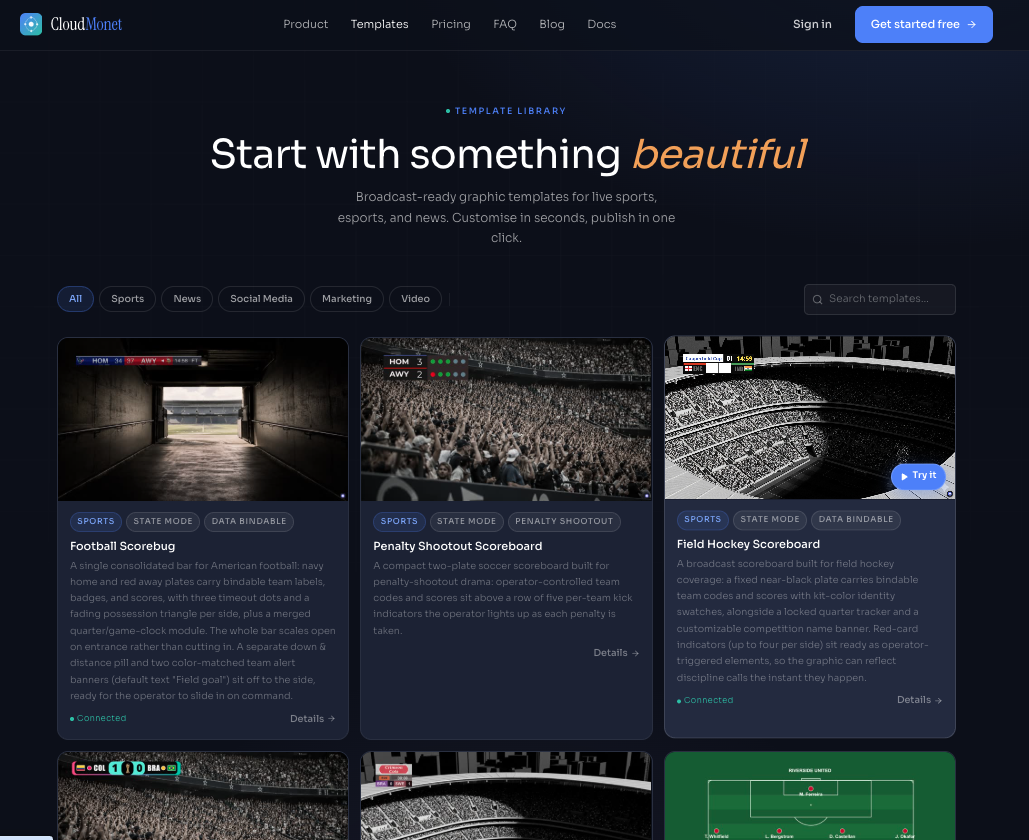
Head to the template gallery and pick the one closest to your sport. Each template page shows a live preview and a rundown of exactly what's operator-controllable — for example, the Football Scorebug template exposes team colors, team labels, badges, scores, possession indicators, timeouts, quarter, game clock, and an ad-hoc down & distance pill, all without opening the design canvas.
If nothing quite matches your sport, you can always start from a blank canvas and build your own — but for most common sports, a template gets you on air faster.
Open the control app for the template
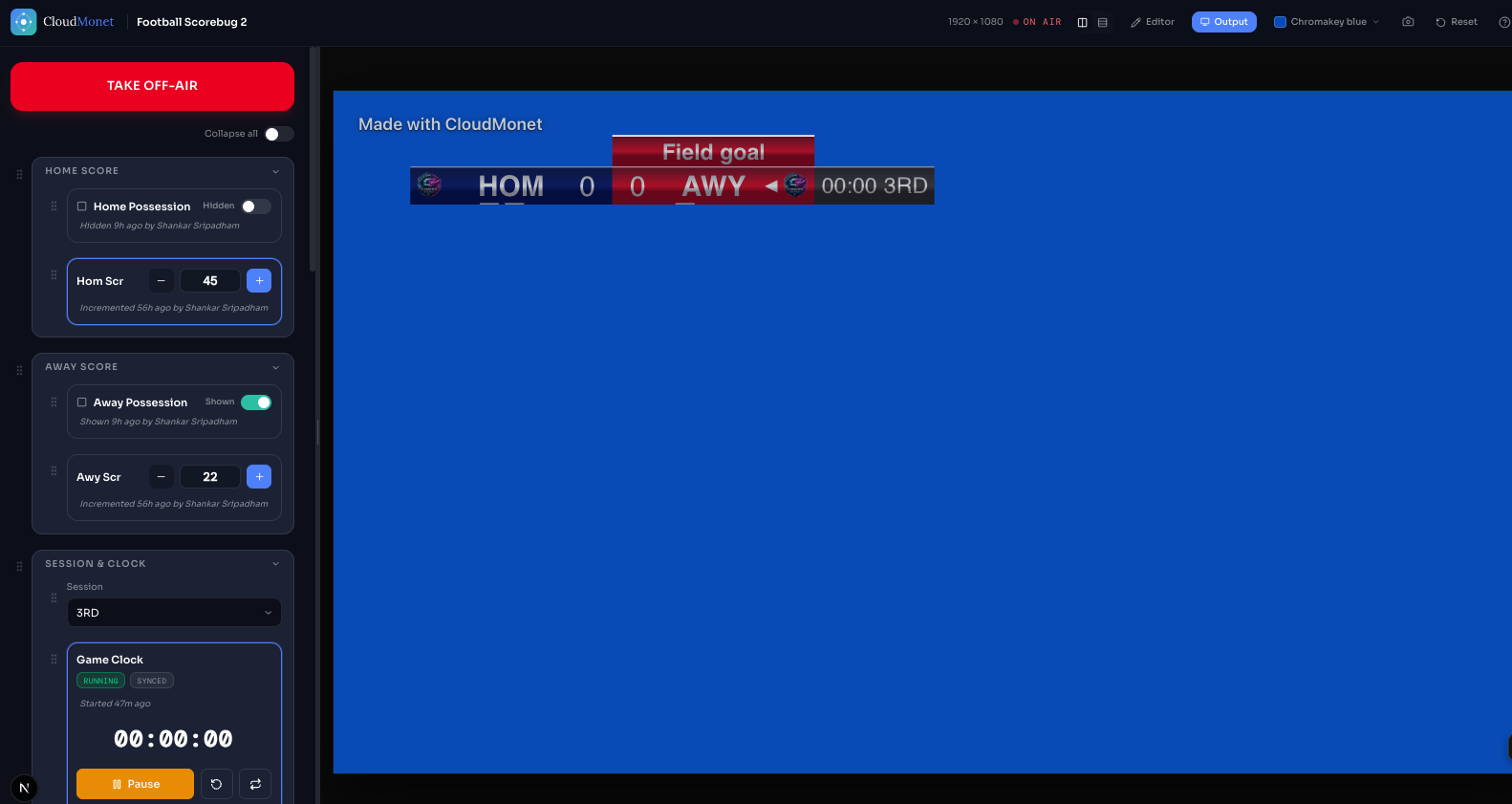
/control/<designId>) separate from the on-screen graphic itself, with a live preview of the graphic alongside the operator panel. This is what you (or whoever is scorekeeping) actually interact with during the game: tapping to increment a score, starting/pausing the clock, toggling possession, or cueing a state like a team alert banner.Where you land when you click a template depends on whether you're logged in:
- Not logged in? Clicking a template takes you straight to its control app — a live demo you can click around in right away, no account needed.
- Logged in? Clicking a template takes you to the design editor instead, since you're set up to customize and own a project. From there, click the Control Panel button in the top-right corner to jump to that project's control app.
Either way, once you're in the control app, take a few minutes to preview and operate the graphic before your broadcast — trigger the score bump, run the clock, toggle possession, slide the alert banner in and out. It's a low-stakes way to get genuinely familiar with a template's controls so nothing feels unfamiliar once the game is live.
The control app also has a Take On Air / Take Off Air button — the graphic won't appear in your output until you click Take On Air, even after it's set up in OBS.
Customize the template
- Team names/abbreviations and logos
- Team colors (these usually double as the plate/background color on the graphic)
- Starting clock length and period format
- Any sport-specific fields — down & distance, timeouts, possession, sets, etc., depending on the template
Because the fields are constrained to what the template's designer exposed (a select dropdown for quarter, a locked clock duration, a single team-label field), there's very little room to fat-finger something mid-broadcast.
Copy the output URLs for OBS
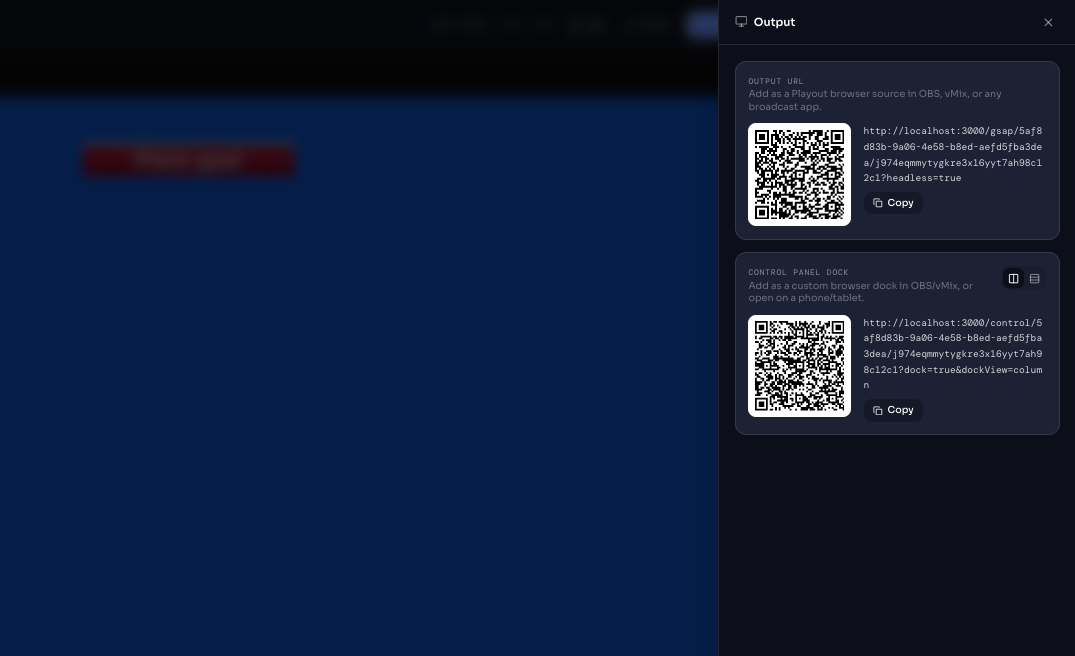
- Output URL — this is the actual on-screen graphic, rendered as a transparent-background HTML5 page. This is the one that goes into OBS.
- Control Panel Dock URL — this is just the operator panel from the control app, without the graphic preview. Keep this one open on your own laptop, tablet, or phone, or dock it inside OBS (Step 5); it's not meant to be seen by your viewers.
Add the output URL as a Browser Source, dock the operator panel
- Go to the Sources panel and click the + button, then choose Browser
- Accept the defaults in the dialog that appears
- Paste the output URL into the URL field, and set the width/height to match the template's canvas (1920×1080 for most templates)
- Click OK — your scoreboard should now appear as a source you can resize and position like any other layer
That covers what your viewers see. You can stop there and just keep the Control Panel Dock URL open in a separate browser tab or on a second device — but OBS also lets you dock that same operator panel directly inside the OBS window itself, so your operator never has to alt-tab away from OBS to update the score:
- In OBS, go to Docks → Custom Browser Docks (Docks menu on Windows/Linux; under View → Docks on some builds)
- Give the dock a name (e.g. “Scoreboard Control”) and paste in the Control Panel Dock URL
- Click Apply, then Close
- The operator panel now shows up as a dockable panel — drag it to wherever's convenient (a side panel, a second monitor, etc.) and it'll persist there across sessions
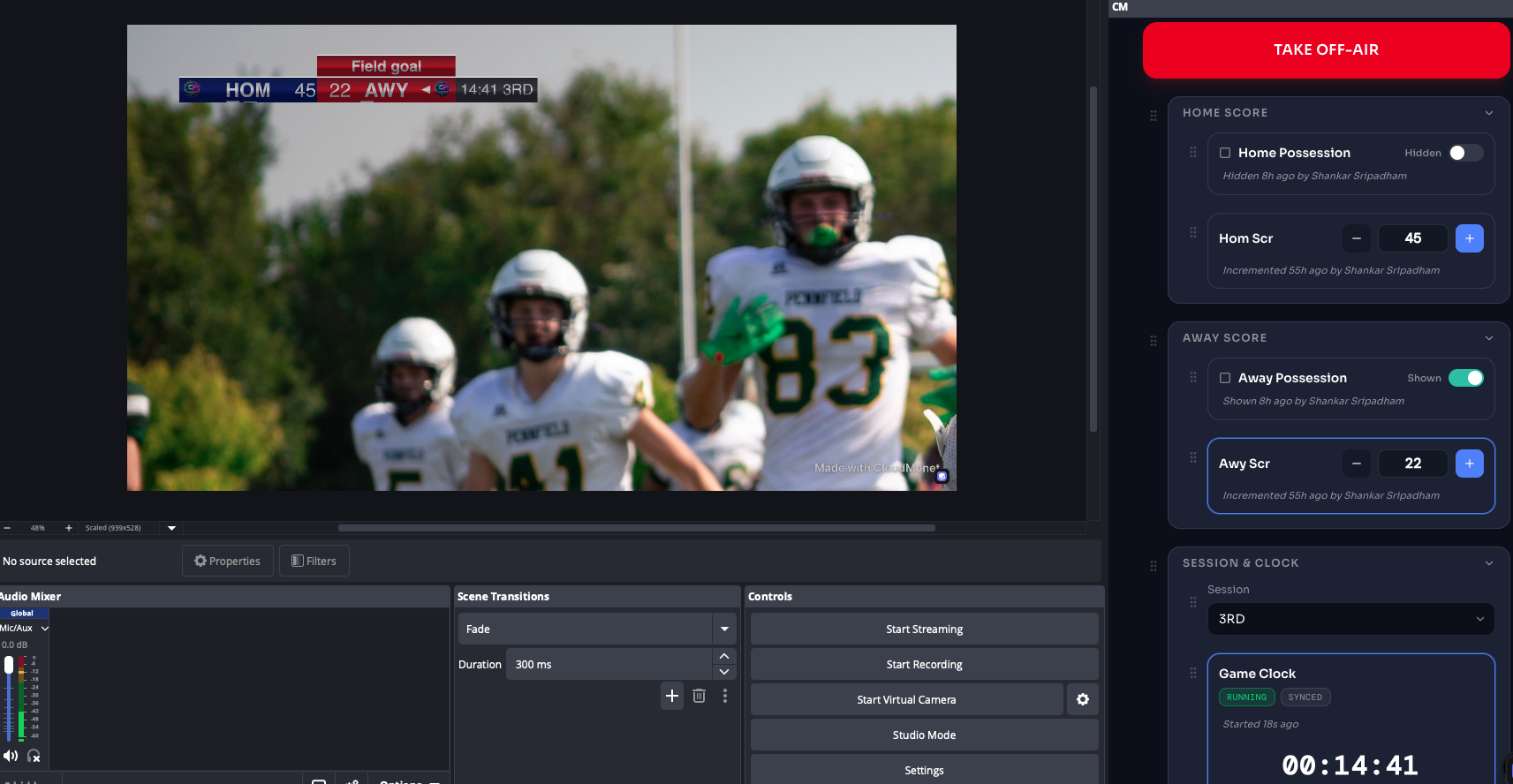
This is the setup most operators land on for live shows: the output URL as a Browser Source feeding the program, and the Control Panel Dock URL as a docked panel right next to the OBS preview — score, clock, and every other control live inside the same window as the stream itself.
Run your show
- Click Take On Air in the CloudMonet Control Panel — the graphic stays hidden until you do, even though the source is already added and enabled in OBS
- Make sure the source's visibility (the eye icon next to it in the Sources panel) is switched on — it's easy to toggle a source off while setting up a scene and forget to turn it back on
- In the Browser Source properties, make sure “Shutdown source when not visible” is unchecked, so the overlay doesn't have to reconnect every time you switch scenes
- Right-click the source and choose “Refresh” if it doesn't load on the first try
The published output URL doesn't change when you tweak the design or data binding later — so once it's in OBS, you never have to touch that source again, even between games.
Why use CloudMonet for this
- · Easy setup. Templates come animated and state-driven out of the box — you're filling in fields, not building layouts.
- · Advanced editor. When you need to make changes you're not limited by the operator controls — you can make changes to the project using the advanced editor.
- · No software install required. All you need is a device that can access the internet and has a browser — operate from anywhere in the world.
- · SaaS. New features and updates are free. We're constantly adding features and templates — see what's new.
Once your first scoreboard is live, the same workflow — template, control app, output URL, OBS Browser Source — carries over to every other broadcast graphic in CloudMonet's template gallery, from lower thirds to tickers to lineup reveals.
Frequently Asked Questions
Do I need to install anything to use CloudMonet?
No. CloudMonet runs entirely in the browser — no plugins or software installs. You only need OBS (or your streaming software of choice) to display the output.
Does this work with software other than OBS?
Yes. The output URL is a standard web page, so it works as a Browser Source in OBS, vMix, Streamlabs, or any tool that supports browser sources.
Can I use CloudMonet for free?
Yes — CloudMonet has a free tier with no credit card required, so you can try the full scoreboard workflow before upgrading.
Can more than one person operate the scoreboard?
Yes. CloudMonet is cloud-native and multi-user, so a second operator can open the control app on their own device.
What happens if I change the design after publishing?
Nothing on your end — the output URL stays the same. Any edits to the design or data binding update live without touching OBS again.