Badminton Scorebug
Player names, games won and live rally points in a compact corner bug. Built to be run from your phone while you commentate.
- Badminton
- Shuttle
- Shuttlecock
- Singles & doubles
- Best of 3 games
- Rally scoring to 21
- Serve indicator
- Squash & table tennis
Learn how to run it
This demo plays a match from setup to the final score, showing each change on the graphic and the control that makes it. Pause it, or step through one change at a time.
The Control App
Follows the demoThis is the panel you run the graphic from. The control used at each step is outlined in blue.
The preview
Plays a demo matchThis is what your viewers see. It changes as the Control App is used.
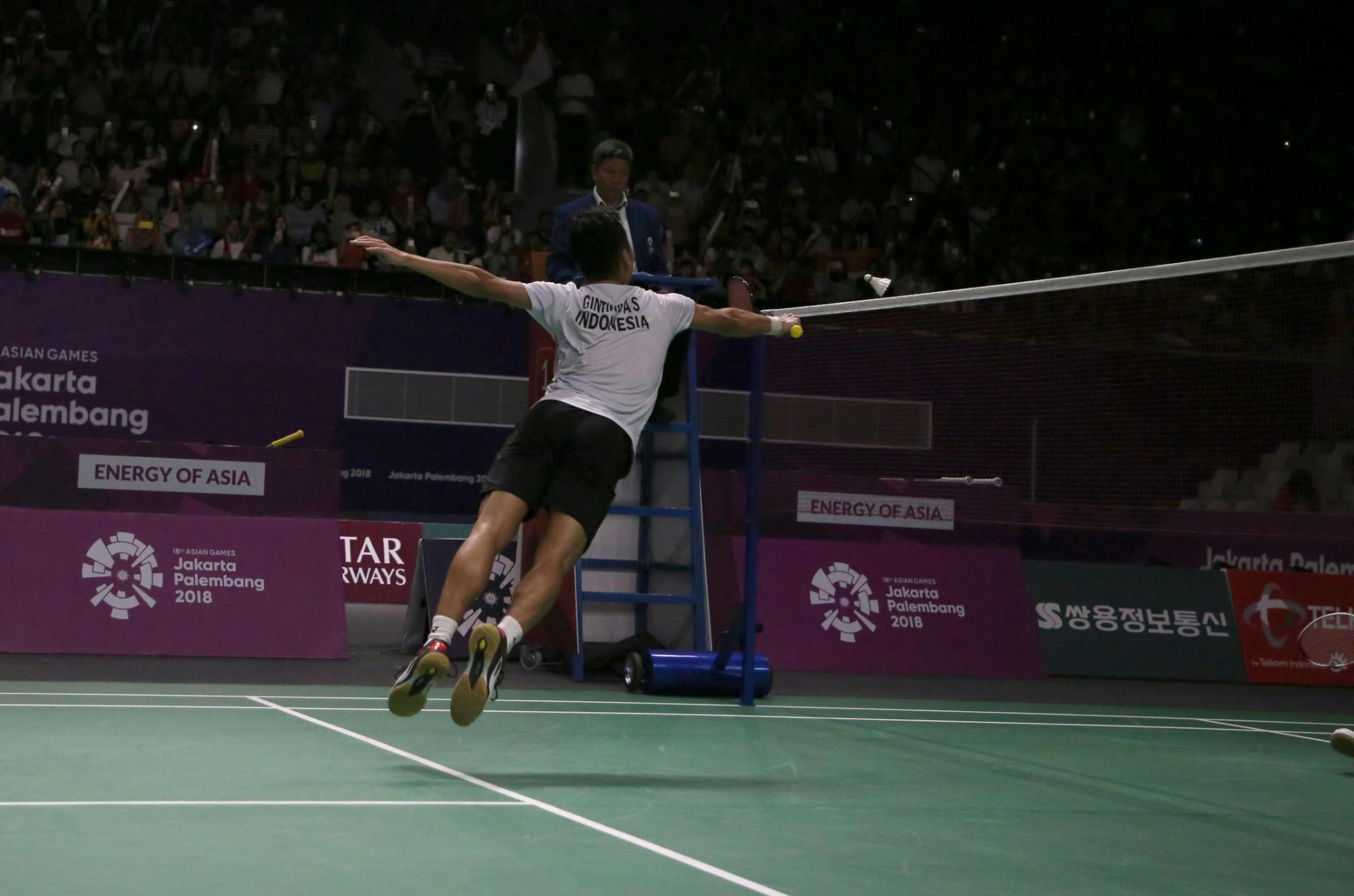
Run of play
Which controls to use at each moment of a match. Press Show me to jump the preview and the Control App to that moment.
- 01Before the matchPlayers walking out
Setup tab: Take On Air so you can preview as you go. Pick a position, set the tournament title, then the player names and colours.
- 02Every rallyAfter each point
+1 on the rally winner's points. Tap the winner under Serving: in rally scoring, whoever wins the rally serves next.
- 03IntervalFirst to 11 in each game
Set Game to INTERVAL. Set it back to the game number when play restarts.
- 04End of a gameA side reaches 21 (or 30)
+1 on the winner's games. Type 0 into both points boxes. Set Game to the next game.
- 05End of the matchTwo games won
Set Game to FINAL and clear Serving. Hold the result for a few seconds, then Take Off Air.
Cards, challenges and injury breaks aren't part of this template. You can add them in the editor as graphics you show and hide from the Control App.
Works with your setup
Add it as a browser source. The background is transparent, so it sits over your camera.
- OBS Studio
- Streamlabs
- vMix
- Prism Live Studio
- Any browser source
- Amagi CLOUDPORTBroadcast export
1920 × 1080 · 25 fps · Transparent · Oswald
On air in three steps
- 1Use this templateA copy is saved to your workspace, with its Control App and output link ready.
- 2Add it to your streamCopy the output link and paste it into a browser source at 1920 × 1080.
- 3Open the Control AppFill in the Setup tab, then follow the run of play above.
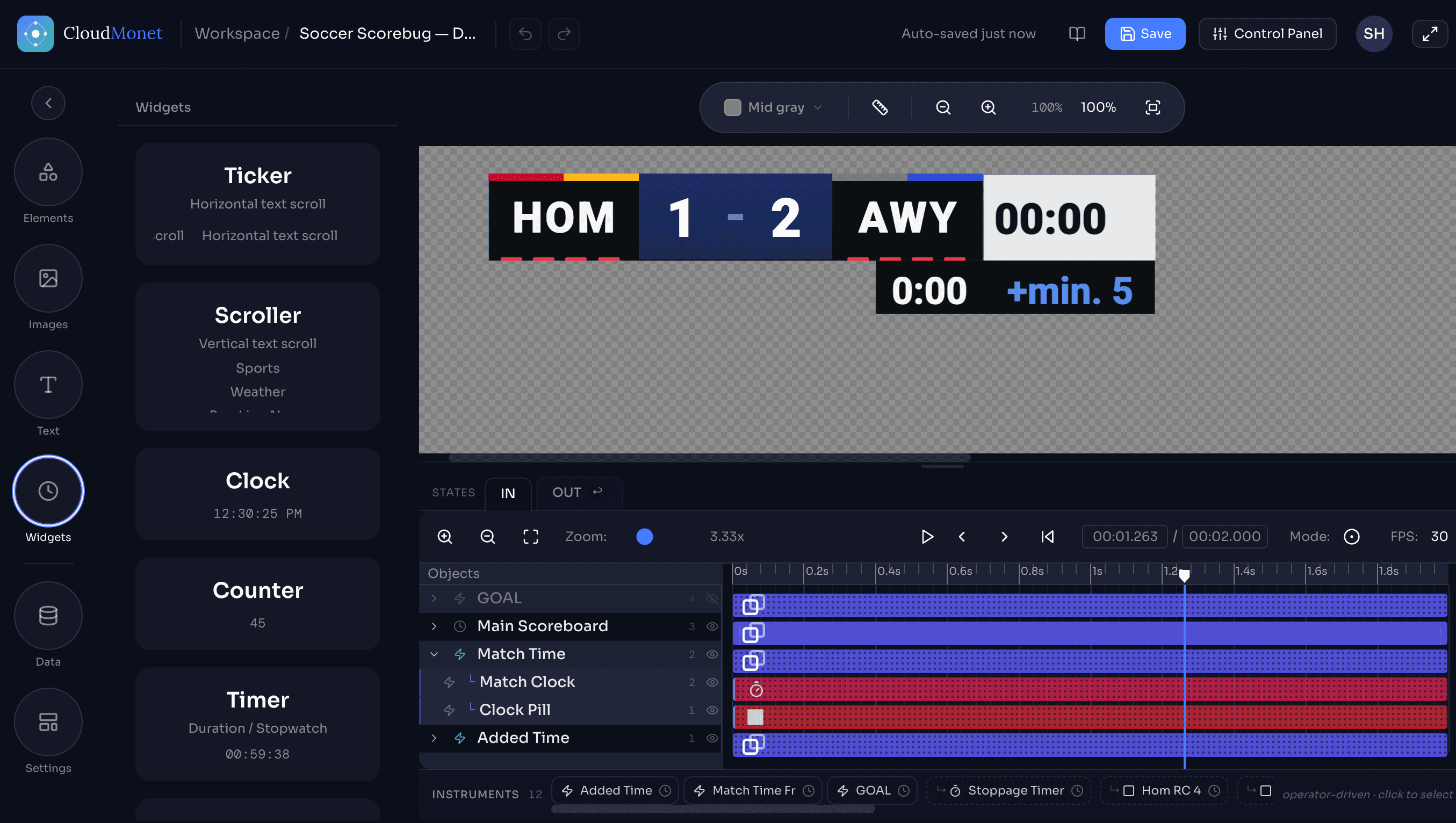
Make it your own in the editor
- Restyle anythingFonts, colours, sizes and position.
- Add your brandingSponsor logos, club crests, a channel bug.
- Add new momentsA card, a challenge or a match-point flash, shown from the Control App.
- Change the motionHow it comes on and off, and how scores change.
Run it from a data feed
OptionalAlready keep score in a spreadsheet or a scoring app? Send these fields and the graphic updates itself. Anything the feed sends can still be overridden from the Control App.
{
  "matchPeriod": "GAME 1",
  "homeColor": "rgba(63, 81, 181, 1)",
  "homeGames": 0,
  "homeScore": 0,
  "homeTeam": "PLAYER ONE",
  "awayColor": "rgba(255, 87, 34, 1)",
  "awayTeam": "PLAYER TWO",
  "awayGames": 0,
  "awayScore": 0
}
Pairs well with
Ready to go live?
Free to use. Your copy comes with its own Control App and output link.